Contact Mapping is an easy and powerful way for you to create value inside relationships, both personal and professional.
This quick, hands-on tutorial will help you to get fully up to speed using the Contact Mapping app within 10-15 minutes!
PSST… CLICK DOWN BELOW TO SEE HOW IT MAKES CONNECTING ON SOCIAL APPS LIKE FACEBOOK, INSTAGRAM, TWITTER, LINKEDIN, & CLUBHOUSE, FASTER AND EASIER THAN EVER!
CREATING YOUR ACCOUNT
If you don’t already have a Contact Mapping account, click here.
INSTALLING THE APP ON YOUR MOBILE DEVICE Go to App Store or Google Play Store to Download the Contact Mapping App on your mobile device.
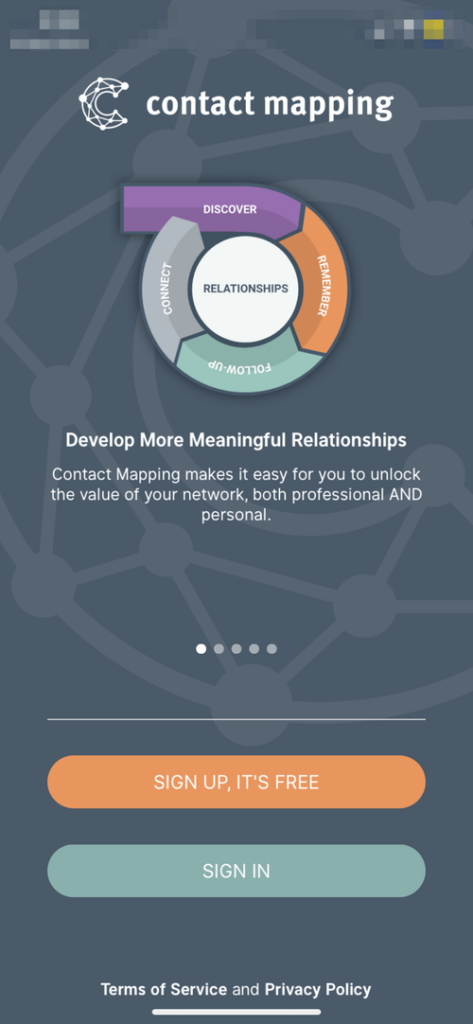
LOGGING IN
When you have the app loaded, you will land on the welcome page where you can sign in with the username and password you previously created.
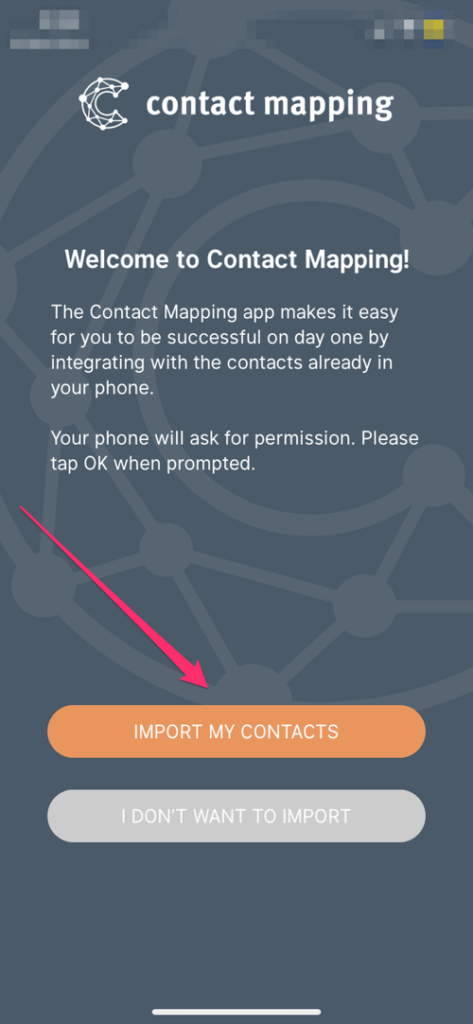
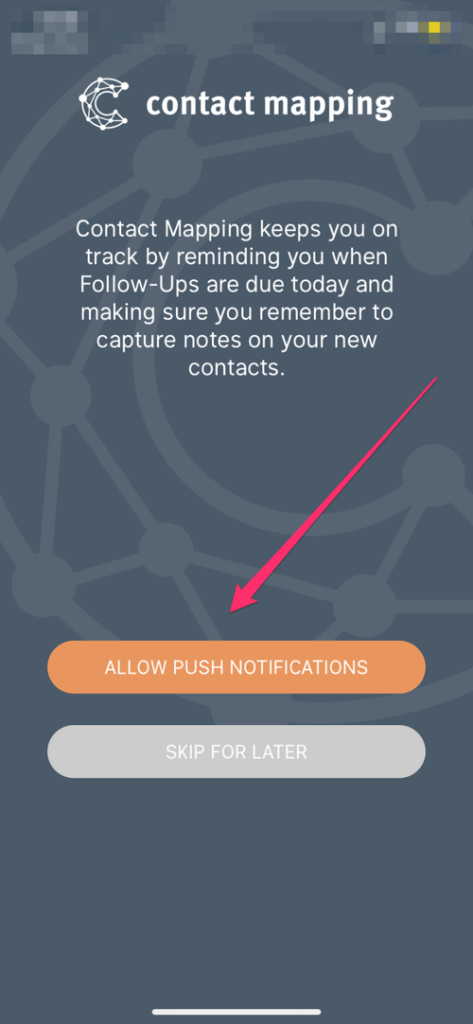
PERMISSIONS
Be sure to import contacts and allow push notifications so that the app will function properly.
Now we will perform the typical daily task of adding a new contact, capturing key details, and setting a follow-up. It’s as easy as 1, 2, 3
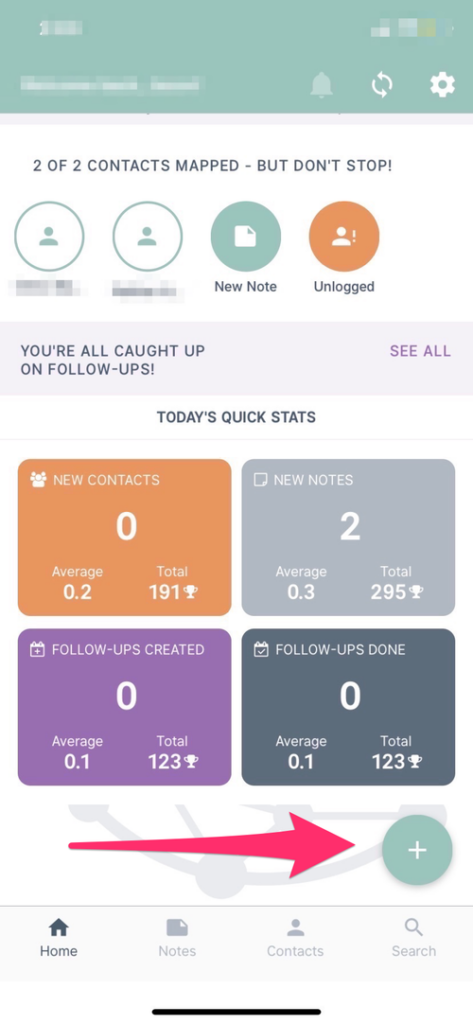
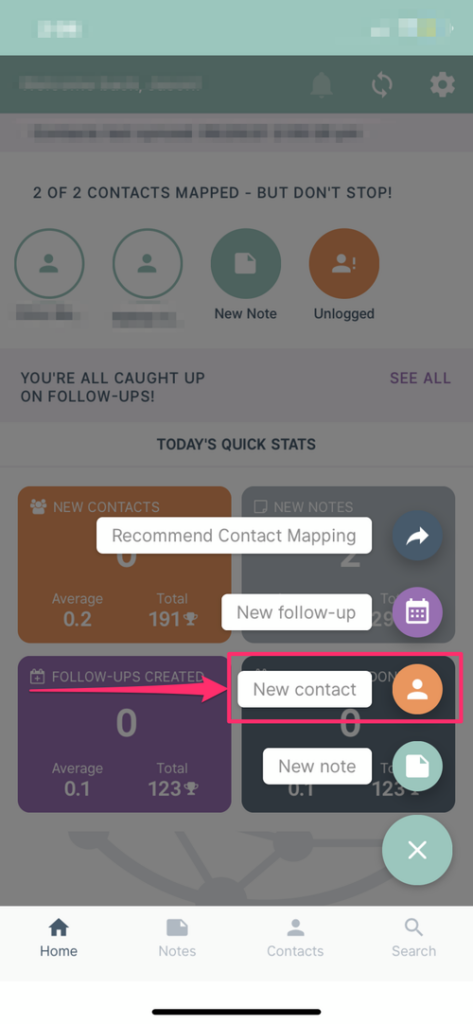
Press on the “Quick Trigger” button to open up the action menu.
Click on “Create a New Contact”
Step 1: Creating a New Contact (cntd)
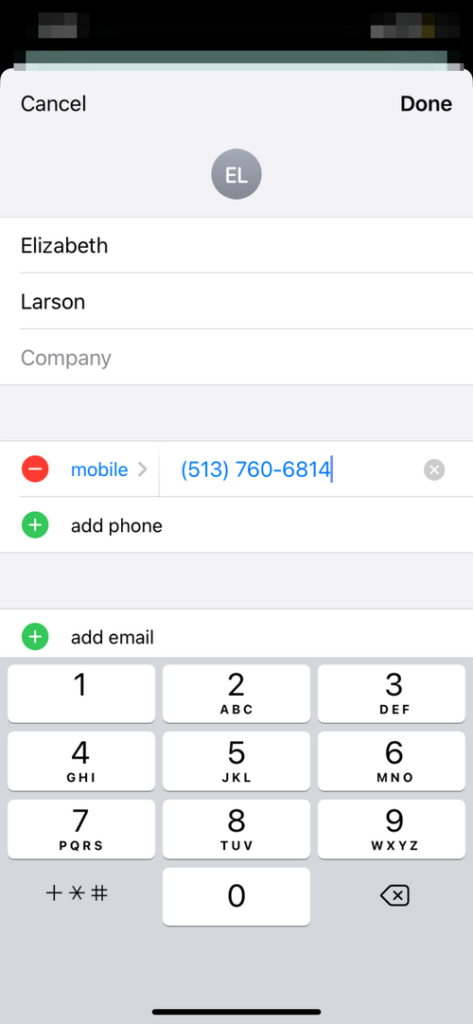
You will now set up your very first Contact, our Chief of Client Success Elizabeth Larson!
Elizabeth Larson 513-760-6814 elizabeth@contactmapping.com
Now Press “Save” or “Done”
Getting Started WIth The App
STEP 2: CREATING A NOTE
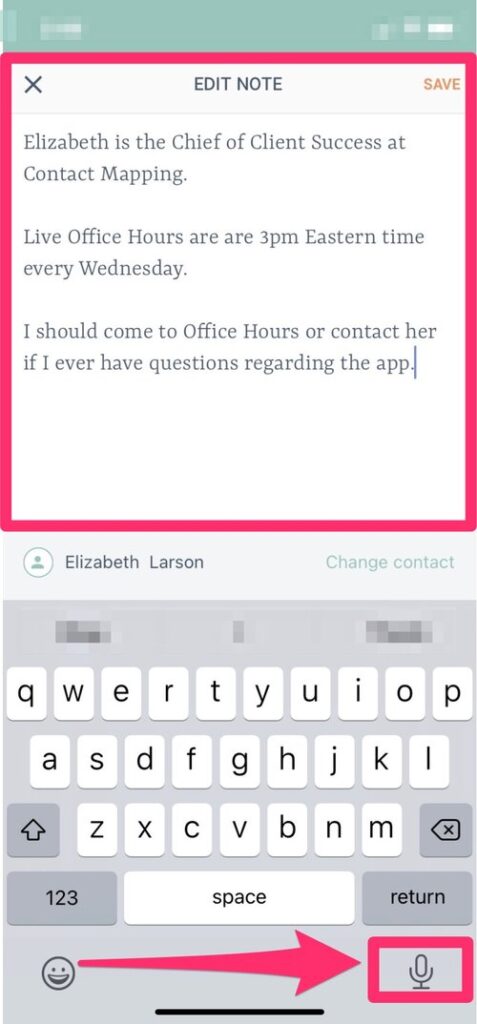
The app will automatically go to a screen with the title “New Note”. You will see where it says, “What do you know about Elizabeth Larson?”
You will now press on the screen to bring up your keyboard and you can look for the voice to text button (see example below for newer iPhones).
Tap on the microphone button and speak into your phone the information you see in the example to the right.
Once you have finished entering the text in the note area, click the “save” button at the top right.
Getting Started With The App
Add Your Heading Text Here
STEP 3: CREATE A FOLLOW-UP
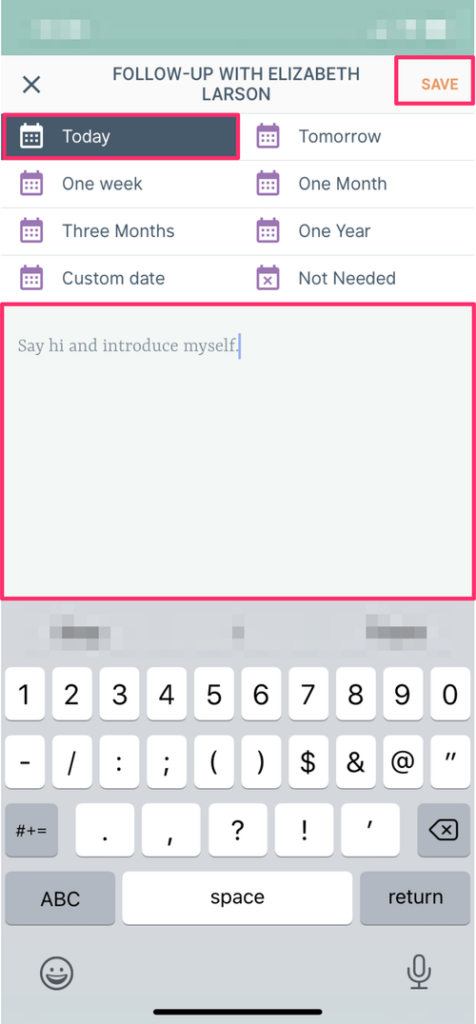
You will now be taken to a page with the Title “Follow-Up With Elizabeth Larson”. On this page you will schedule a follow-up:
Date: “Today”
“What do you want to follow-up about?”: “Say hi and introduce myself”
Hit the Save button at the top right. The app should take you back to the “Home” Screen.
Getting Started With The App
STEP 4: COMPLETING A FOLLOW-UP
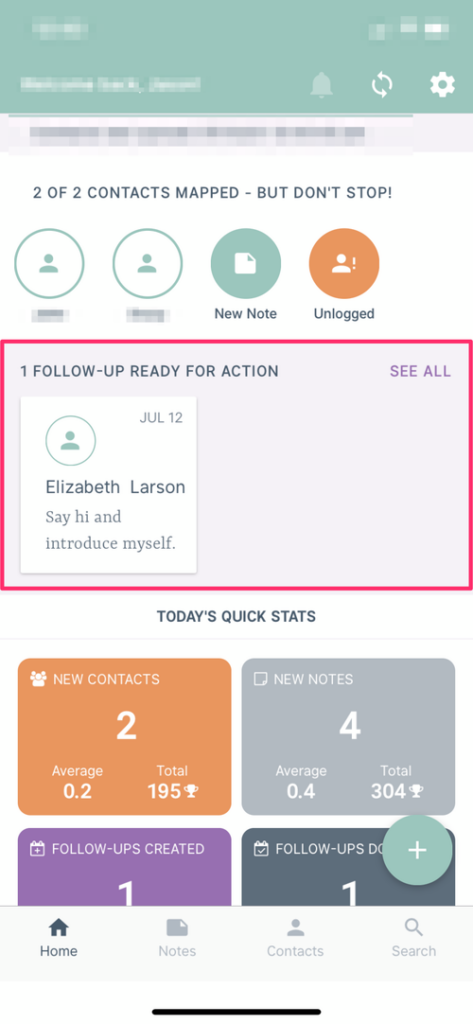
After creating the follow-up you should see it on the home screen of your app.
Tap on it to open it up.
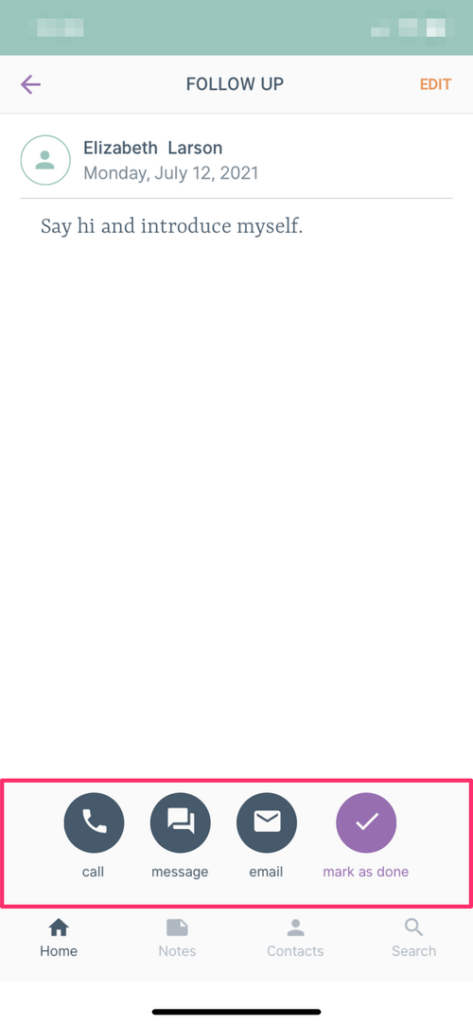
You can see what the purpose of the follow-up is, and you’ll have the option to call/text/email them to complete the follow-up.
Once you have taken action and reached out, you can mark that follow-up as done.
There Is So Much More To See!
We’re sure you’re already excited about what you’ve experienced with Contact Mapping, but this is only scratching the surface!
Did you know you can use Contact Mapping on your computer and connect it to all of your social connections on Facebook, Instagram, Clubhouse, LinkedIn, and Twitter?